In this blog

Need a design partner that scales with you?
See exactly how Design Shifu can become your on-demand design team. Book a free demo call.
Stop wasting 30 hours every week on poor collaboration. Your team just spent 20 minutes searching for a file buried in an email thread. Someone else gave feedback on the wrong version of a design. A third person missed the deadline because they never saw the group chat message.
Sound familiar?
This happens every single day in teams without good collaboration tools. The cost? According to a 2022 Corel survey, 64 percent of workers waste at least three hours each week because of poor collaboration. For a 10-person team, that adds up to 30 wasted hours weekly. That is almost one full-time employee doing nothing productive.
But here is the good news. Teams using the right collaboration tools can boost their productivity by up to 25 percent, according to McKinsey research. They make decisions 37 percent faster. They finish projects on time. They actually enjoy working together.
This guide shows you the 12 best collaboration tools that solve real problems for busy creative teams in 2026. Each tool has been tested, reviewed, and proven to work.
Too busy to read the whole article? Here are the key points:
Quick Comparison: Best Collaboration Tools
Here is a quick look at the top collaboration tools for 2026:
Why Your Team Needs Better Collaboration Tools
Bad collaboration costs money and time. Studies show that 86 percent of people blame poor teamwork or bad communication for workplace failures. Companies that support collaboration are five times more likely to perform well.
Here is what happens without good tools:
- Files get lost across different apps and email threads
- Feedback arrives too late to help
- Team members spend hours searching for information
- Nobody knows which file version is correct
- Projects miss deadlines because of confusion
Teams with good collaboration tools are 23 percent more profitable than teams without them. The right tools also help keep talented workers on your team longer.
The 12 Best Creative Collaboration Tools
1. Slack: Fast Team Communication
Slack has become the main chat tool for most creative teams. It organizes conversations into channels. Each project or topic gets its own space. You can share files and connect with over 2,600 other apps.
Marketing teams using Slack make decisions 37 percent faster. They also respond to leads three times quicker. This happens because better communication and automation remove delays.

What makes Slack good:
- Channels keep different projects separate and organized
- Direct messages for quick one-on-one chats
- Search works well to find old messages
- Works on phone, computer, and web browser
- Best for teams that need fast messaging and want to connect many tools together.
Too many notifications can distract your team. Messages pile up fast in busy channels. Important information can get buried under casual chat.
- Price: Free plan available. Paid plans start at $8.75 per person each month.
2. Microsoft Teams: Video Meetings Done Right
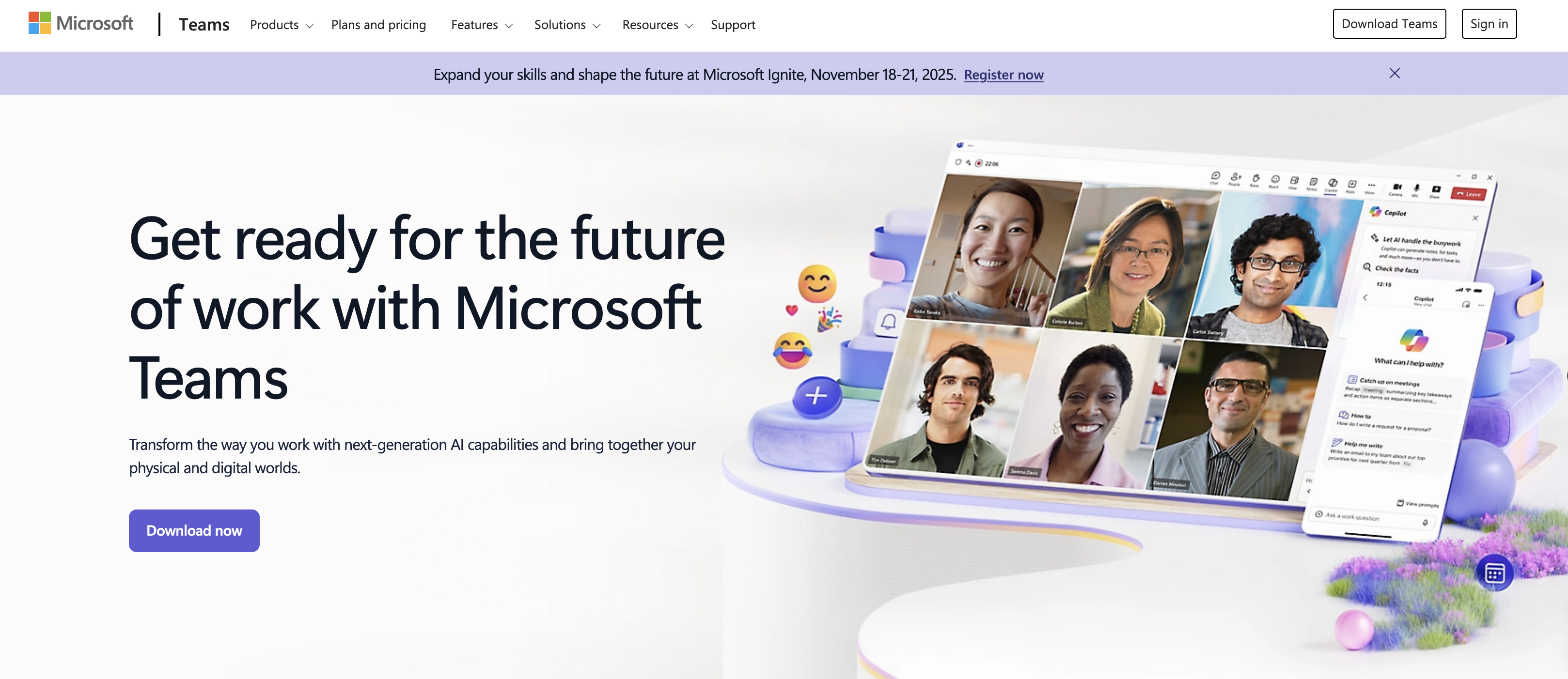
Microsoft Teams brings chat, video, and files into one app. It works perfectly with Word, Excel, and other Microsoft tools. Teams can hold video meetings with up to 300 people on all plans.
You can edit Word and Excel files right in the chat. No need to open new programs or download files first. Multiple people can work on the same document at once.
What makes Teams good:
- Strong video call features that rarely fail
- Works great with Microsoft Office tools
- Good security for companies that need it
- Screen sharing during calls is simple
Watch out for:
The interface can feel confusing at first. Files uploaded to chat all mix together. Finding an old document takes extra time.
- Price: Free plan available. Paid plans start at $4 per person each month.
- Best for: Companies already using Microsoft tools who need strong video features.
3. Figma: Design Together Live
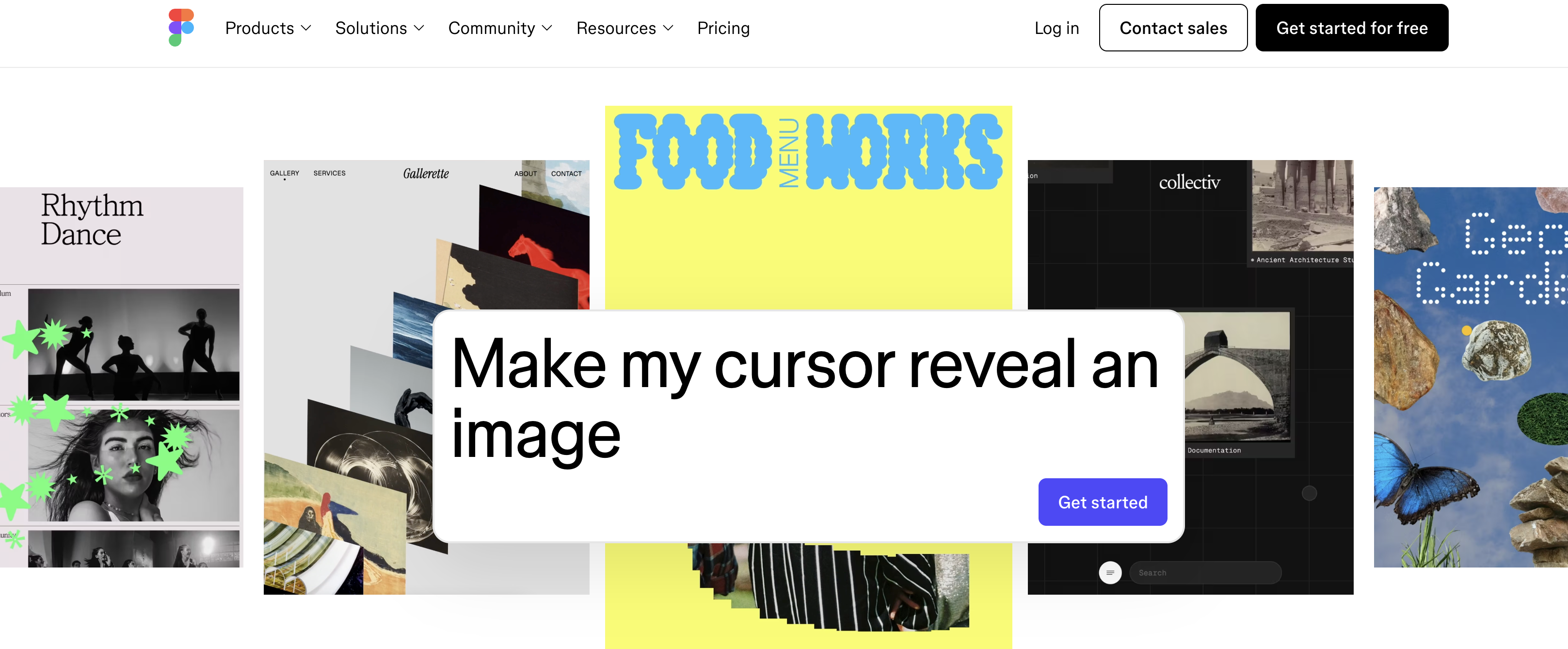
Figma changed how designers work. Multiple people can design in the same file at once. You see your teammates' cursors moving. Changes happen right in front of you.
In 2020, about 66 percent of designers used Figma. That number keeps growing. Teams like it because sharing work is easy. You give feedback right on the design. No more sending files back and forth by email.
This kind of real-time editing is ideal for collaborating on design assets across teams and supports modern design workflows for marketing teams working on fast-moving campaigns.
Figma runs in any web browser. Anyone can view designs without downloading software. This makes it perfect for sharing work with clients and stakeholders.
What makes Figma good:
- Real-time collaboration shows everyone working together.
- Comments attach directly to specific design elements
- Version history lets you go back to earlier designs
- Works on Mac, Windows, and web browsers
Watch out for:
Large design files can slow down. You need good internet connection. Advanced features take time to learn.
- Price: Free plan for small teams. Paid plans start at $15 per person each month.
- Best for: Design teams creating user interfaces who want everyone working on files together.
4. Notion: Your Team Wiki
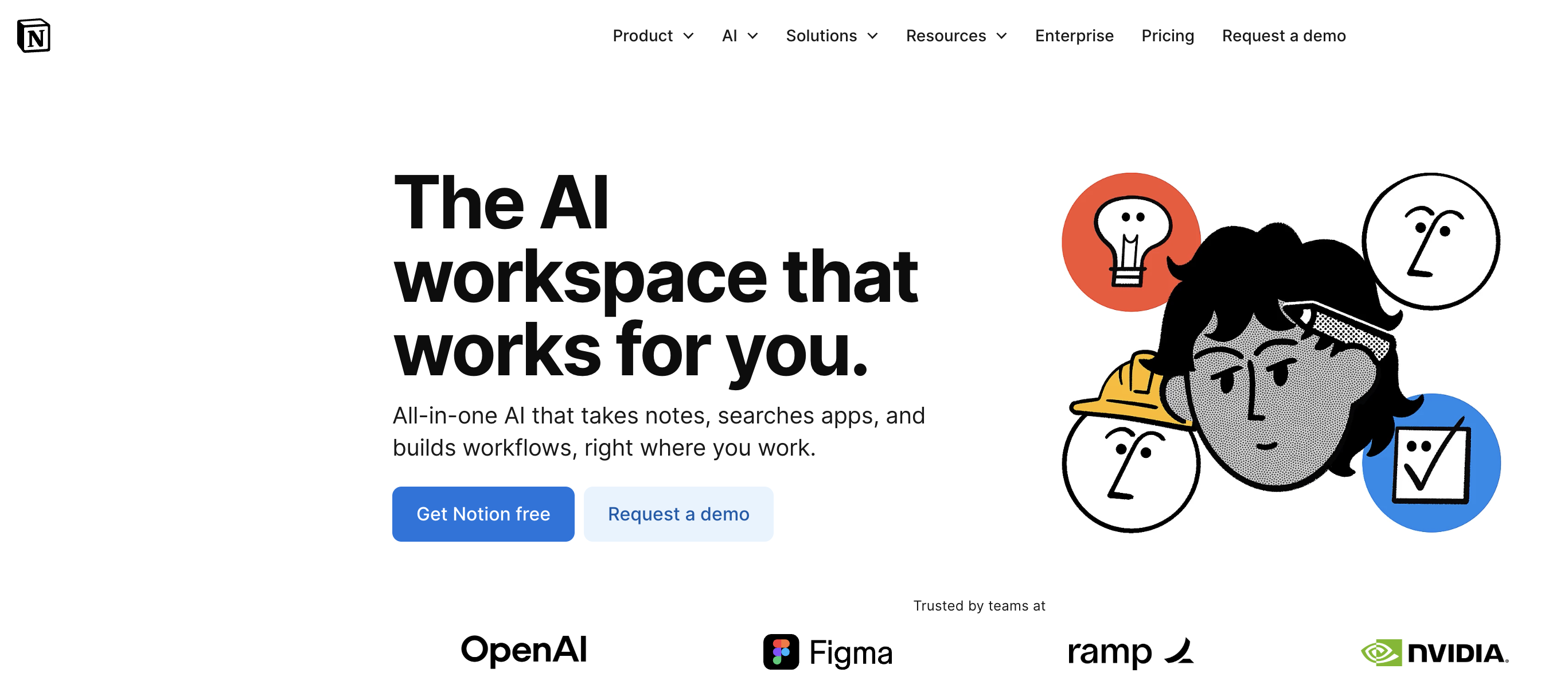
Notion works like a digital Swiss Army knife. Teams use it for meeting notes, project plans, design briefs, and company wikis. Everything stays in one central place.
You can create custom databases that match how your team works. Want a content calendar? Build it. Need a task board? Make it. Notion adapts to your workflow instead of forcing you to change.
Some users report that Notion helps them manage up to 95 percent of their daily work tasks. The tool became popular because it replaced many separate apps.
What makes Notion good:
- Very flexible system that adapts to any workflow
- Templates help you start projects quickly
- Great for storing team knowledge and documentation
- Clean interface that is easy to read
Watch out for:
So many features can feel overwhelming. Syncing sometimes lags. Advanced setups take time to build.
- Price: Free plan for individuals. Team plans start at $10 per person each month.
- Best for: Teams wanting one flexible workspace for documents, tasks, and knowledge bases.
5. Miro: Brainstorm Together
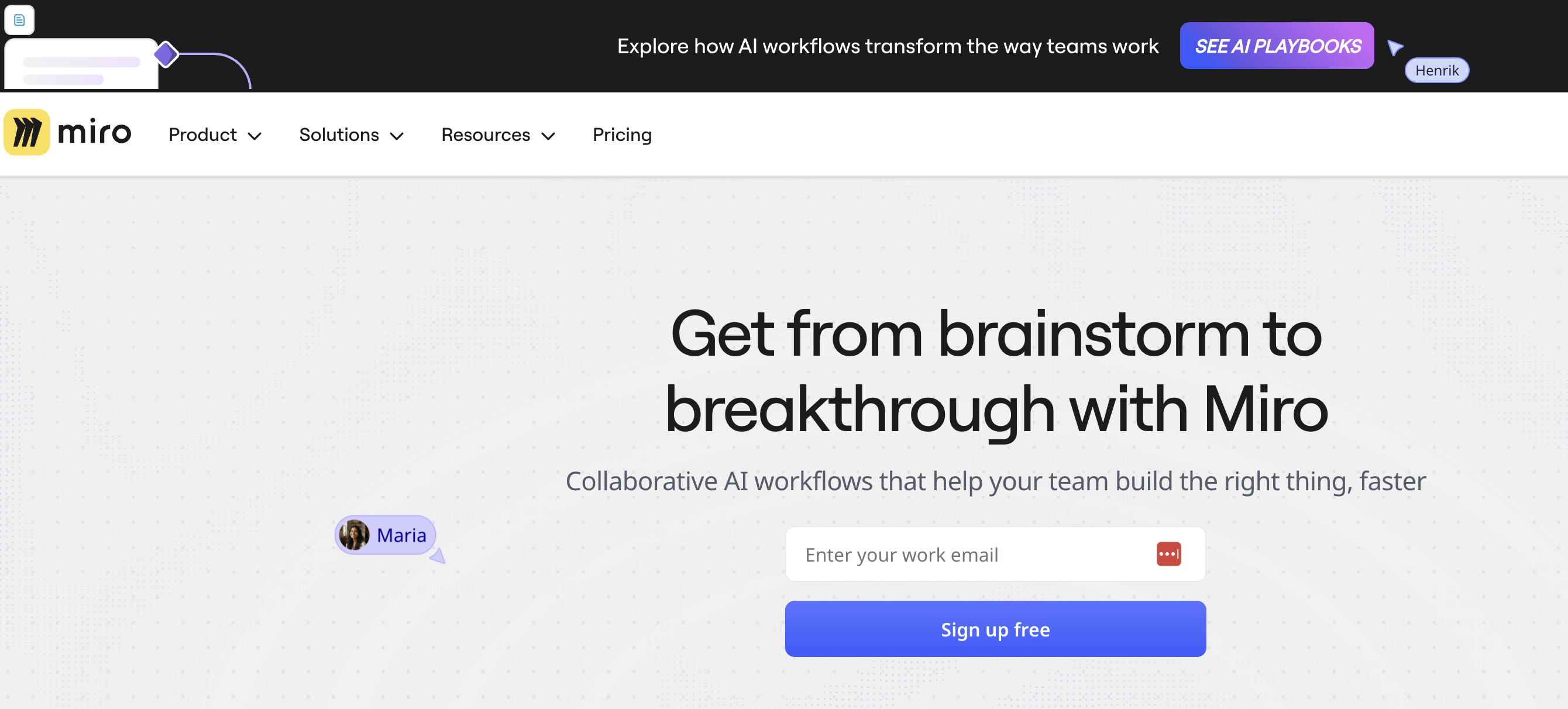
Miro gives teams an endless digital whiteboard. You can add sticky notes, draw diagrams, and map out ideas together in real time.
The platform includes templates for everything. Mind maps, user journey flows, project plans. This helps teams start working quickly without building from scratch.
What makes Miro powerful is how everyone can work at once. Your team might sit in the same room or work across the world. Either way, you watch ideas take shape together.
What makes Miro good:
- Infinite canvas gives you unlimited space
- Lots of templates for different workshop types
- Video chat built right into the board
- Works great for remote brainstorming sessions
Watch out for:
Can get messy with too many people. Large boards load slowly. Free plan limits features.
- Price: Free plan available. Paid plans start at $10 per person each month.
- Best for: Remote teams needing visual collaboration for brainstorming and workshops.
6. Google Workspace: Real-Time Documents
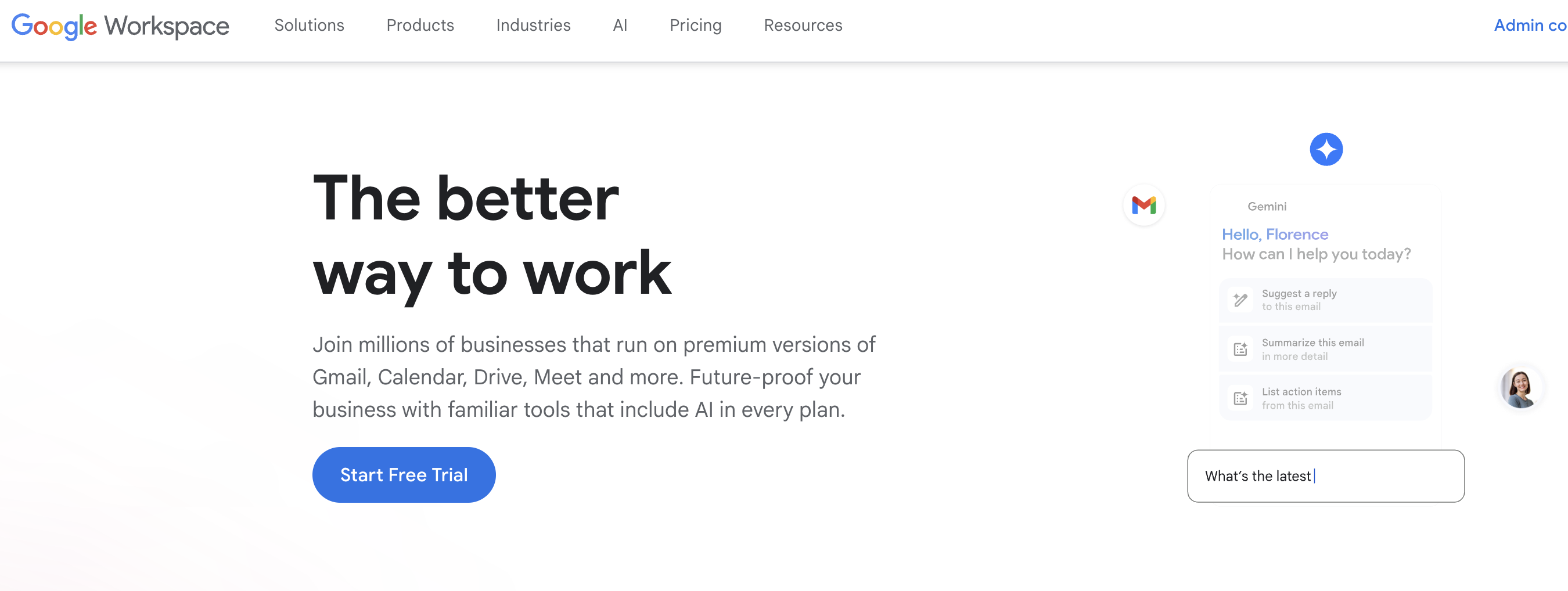
Google Workspace leads document collaboration. Multiple people can write and edit the same Doc, Sheet, or Slide at the same time. No more confusion about which version is newest.
The tools work together smoothly. Gmail for email, Drive for storage, Docs for writing, Meet for video calls. Everything connects in one system.
Plans start at six dollars per user each month. The tools work on any device. They are very easy to learn.
What makes Google Workspace good:
- Everyone knows how to use Google Docs
- Real-time editing shows changes as they happen
- Unlimited storage on business plans
- Works offline then syncs when you reconnect
Watch out for:
Less formatting control than Word. Some features need the internet. Sharing settings can confuse people.
- Price: Starts at $6 per person each month.
- Best for: Teams needing simple, powerful document collaboration on all devices.
7. Zoom: Reliable Video Calls
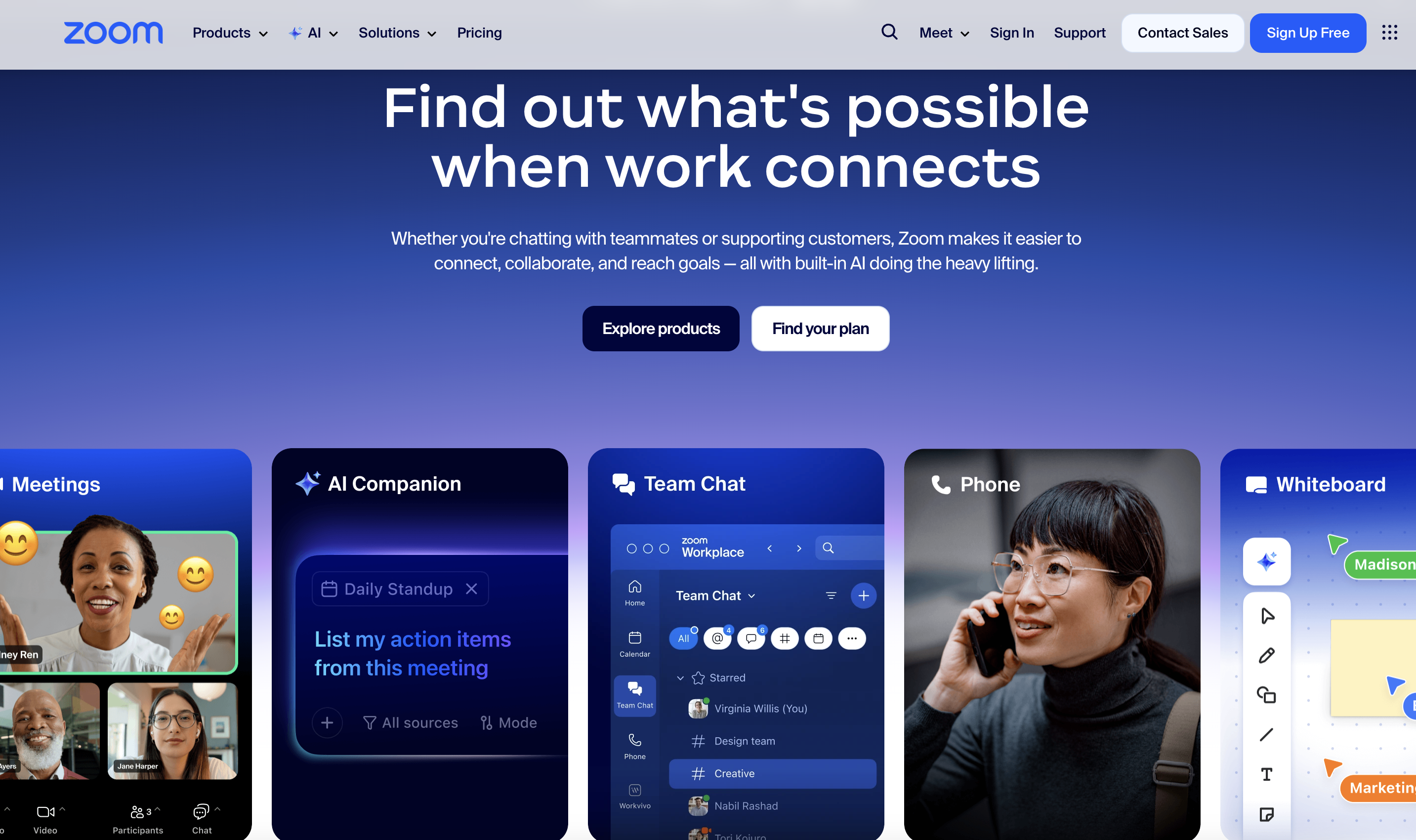
Zoom became famous for reliable video calls. It handles video and audio better than most competitors. The platform now includes team chat and whiteboards too.
In 2025, about 75 percent of workers say their remote work software needs improvement. Zoom keeps updating based on what users need.
The AI Companion on paid plans creates meeting summaries automatically. It also lists action items. This saves time after important creative reviews.
What makes Zoom good:
- Video quality stays good even with weak internet
- Can record meetings for people who miss them
- Virtual backgrounds help in casual settings
- Easy to schedule and join meetings
Watch out for:
The free plan limits meetings to 40 minutes. Some features cost extra. Background noise can be a problem.
- Price: Free plan available. Paid plans start at $15.99 per person each month.
- Best for: Teams relying heavily on video meetings who want stable connections.
8. Canva: Simple Design for Everyone
Canva helps entire teams create visual content quickly. It started as a simple design tool. Now it includes features for social posts, presentations, and marketing materials.
Multiple people can work on the same design at once. The Brand Kit feature uploads logos and colors. This keeps all creations consistent.
The platform offers thousands of templates. Marketing and sales teams can create professional content without design skills.
What makes Canva good:
- Very easy to learn for non-designers
- Huge library of templates and images
- Brand Kit keeps designs consistent
- Can schedule social media posts
Watch out for:
Not as powerful as Photoshop or Illustrator. Templates can make work look generic. The free plan has limited features.
- Price: Free plan available. A pro plan costs $15 per person each month.
- Best for: Marketing teams and small businesses needing quick-turn creative assets.
9. Asana: Organize Your Projects
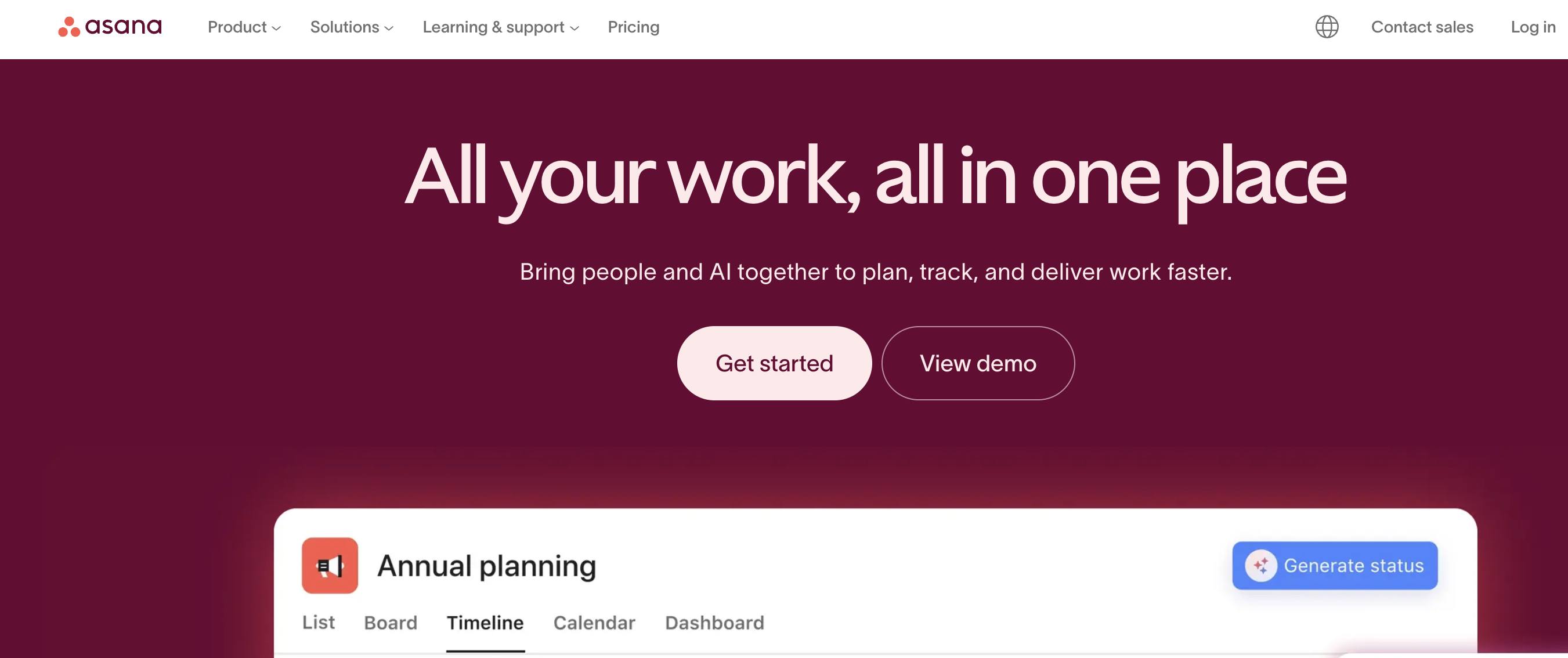
Asana helps teams plan, organize, and track work. You can create projects, assign tasks, and set deadlines. Everything stays in one place.
The platform offers multiple views. List view shows all tasks. Board view works like a kanban system. The timeline view displays a Gantt chart. Calendar view shows deadlines.
What makes Asana good:
- Clear task assignments prevent confusion
- Multiple project views suit different work styles
- Good for tracking complex projects
- Automation rules save time on repeat tasks
Watch out for:
Can feel complicated for simple projects. Notifications pile up quickly. Some advanced features need paid plans.
- Price: Free plan for small teams. Paid plans start at $13.49 per person each month.
- Best for: Teams managing multiple projects who need clear task organization.
10. Trello: Visual Task Management
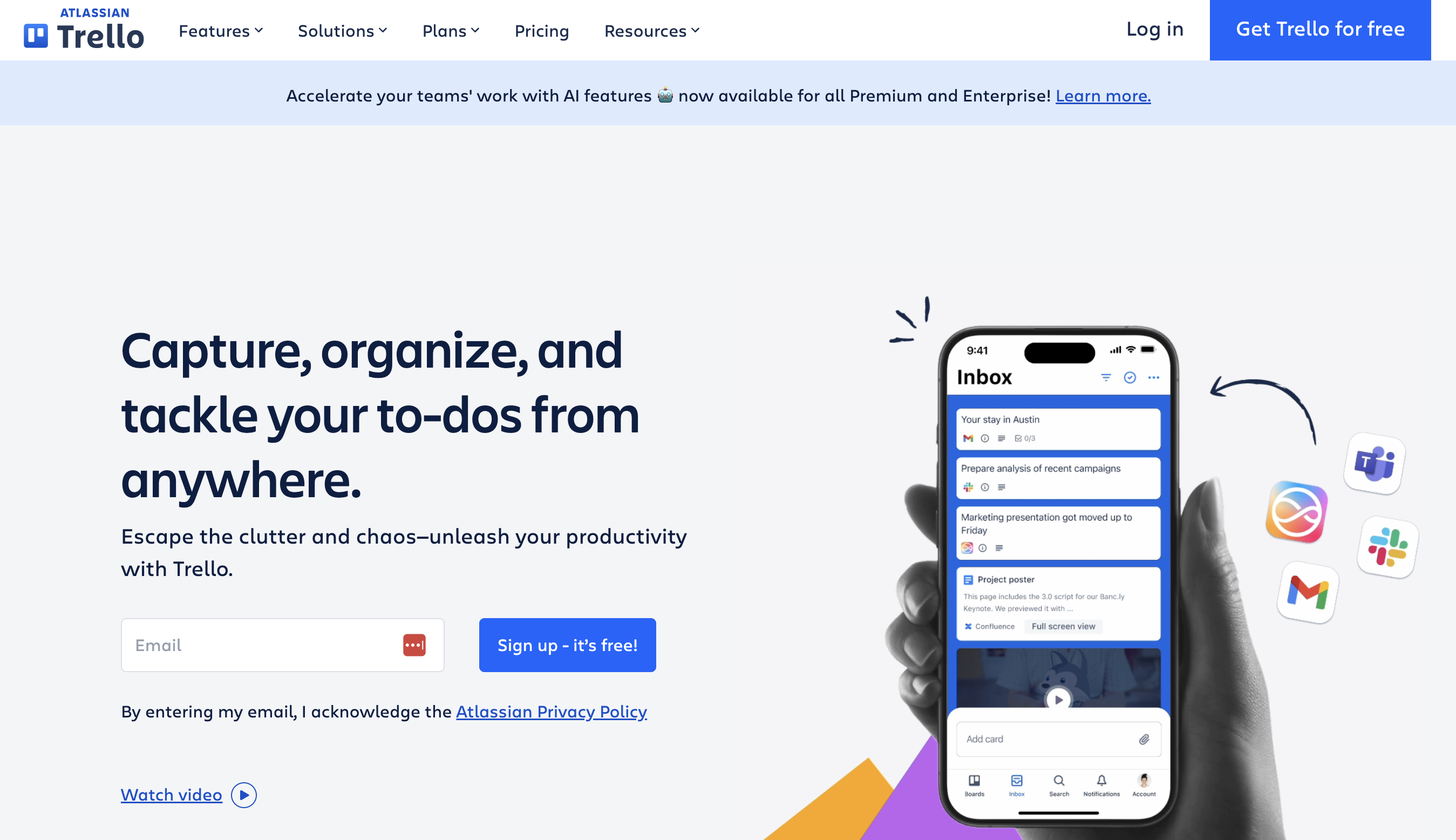
Trello uses boards, lists, and cards to organize work. You move cards across lists as work progresses. The visual system makes it easy to see what needs doing.
Cards can hold checklists, attachments, due dates, and comments. You assign cards to team members. Everyone sees updates in real time.
What makes Trello good:
- Very simple to learn and use
- Visual system shows progress clearly
- Works well for agile teams
- Butler automation handles repetitive tasks
Watch out for:
Too simple for complex projects. Limited reporting features. Can get messy with many cards.
- Price: Free plan available. Paid plans start at $6 per person each month.
- Best for: Small teams wanting simple, visual project management.
11. Monday.com: Flexible Work Platform
Monday.com offers a colorful, customizable work platform. You can track projects, manage tasks, and automate workflows. The interface adapts to different team needs.
Boards show work visually with color-coded status updates. You can build custom workflows without coding. Automation handles repetitive tasks.
What makes Monday.com good:
- Very visual and easy to understand
- Lots of customization options
- Good automation features
- Works for many different use cases
Watch out for:
Gets expensive as the team grows. Learning curve for advanced features. Mobile apps have fewer features.
- Price: Free plan for individuals. Team plans start at $27 per month for three users.
- Best for: Teams needing a flexible platform that adapts to different workflows.
12. Loom: Quick Video Messages
Loom makes recording and sharing videos simple. Instead of typing long explanations, you show and tell. This works great for giving feedback or explaining concepts.
Video messages add personality to remote work. They help build rapport. They make sure everyone understands clearly.
Teams use Loom for design reviews, status updates, and tutorials. It helps with async work when team members work in different time zones. It is especially useful for giving clear design feedback without long meetings or confusing comment threads.
What makes Loom good:
- Very quick to record and share videos
- Can record screen, camera, or both
- Recipients can comment at specific timestamps
- Great for async communication across time zones
Watch out for:
Free plan limits video length. Can use lots of storage. Not good for formal presentations.
- Price: Free plan available. Paid plans start at $15 per person each month.
- Best for: Remote teams needing to share feedback and updates without scheduling meetings.
How to Pick the Right Tools
Choosing collaboration tools can feel hard. Here is a simple way to decide:
Step 1: Find your biggest problems
What frustrates your team most? Lost files? Slow feedback? Too many meetings? Pick tools that solve your specific problems.
Step 2: Check what you already use
Do you already use Microsoft tools? Then Teams make sense. Do you use many different apps? Then Slack connects them better.
Step 3: Think about cost and size
Some tools work great for small teams but get expensive as you grow. Others offer better value for larger groups. Check the pricing carefully.
Step 4: Start small
Pick one or two tools to try first. Get your team comfortable before adding more. Too many tools at once creates confusion.
Step 5: Test before buying
Most tools offer free trials. Use them. Test with real work. Ask your team what they think. Then decide.
Key Features to Look For
Good collaboration tools share certain features. Look for these:
- Real-time updates: Changes appear instantly for everyone. No waiting for refreshment.
- Easy file sharing: Upload and share files with a few clicks. No email attachments needed.
- Good search: Find old messages and files quickly. Search saves time every day.
- Mobile apps: Work from your phone when away from your desk. Stay connected anywhere.
- Integrations: Connect with other tools your team uses. Everything works together.
- Security: Your data stays safe. Good tools protect sensitive information.
- Simple interface: Team members learn quickly. Less training time needed.
Making Your Tools Work Better
Having good tools is just the start. Your team needs to use them right.
Set clear rules
Decide which tool does what. Use Slack for quick chats. Put important documents in Google Drive or Notion. Keep project tasks in one place. Clear rules prevent confusion.
Train your team
Most tools offer free training. Take time to learn properly. Good training saves frustration later. Schedule practice sessions.
Check what works
Ask your team regularly which tools help and which cause problems. Be willing to switch if something is not working. Stay flexible.
Keep it simple
Do not use 10 different tools. Pick a few that work well together. Simple systems get used. Complicated ones get ignored.
Common Mistakes to Avoid
Teams make these mistakes when choosing collaboration tools:
Buying without testing
Always try before you buy. Free trials exist for a reason. Test with real work, not demos.
Ignoring your team
Ask your team what they need. They use the tools daily. Their input matters most.
Choosing based on price alone
Cheap tools cost more if they waste time. Good tools pay for themselves through better productivity.
Adding too many tools
More tools do not mean better collaboration. Too many tools create confusion. Keep your tech stack simple.
No training plan
New tools need training. Make time for learning. Create guides for your team. Answer questions quickly. Even with the right tools and training, many teams still struggle to keep up with design execution.
Tools Fix Collaboration. Design Shifu Fixes Design Bottlenecks.
Collaboration tools improve communication, but creative teams still slow down on execution.
Design Shifu gives you unlimited graphic design support that fits right into your workflow, Slack for feedback, Figma for reviews, Loom for quick clarifications. No hiring. No long contracts. Faster output.
Explore Unlimited Design Support with Design Shifu
The Future of Collaboration Tools
Collaboration tools keep getting better. Here is what is coming:
More AI features
AI will write summaries. It will suggest tasks. It will translate languages. Smart tools will do more work automatically.
Better video quality
Video calls will feel more real. Background noise will disappear. Virtual reality meetings might become normal.
Smarter integrations
Tools will work together seamlessly. Data will flow between apps automatically. You will switch tools less often.
Enhanced security
Better protection for your data. Stronger privacy controls. Safer remote work.
Key Takeaways
Final Thoughts
Good collaboration tools change how teams work. They save time, reduce stress, and solve real everyday problems.
The best setup starts with your biggest pain points. Choose tools that fix those issues, train your team well, and review what works regularly. When teams collaborate effectively, they work faster, stay longer, and deliver better results.
Start small. Test one or two tools. Build from there. Many creative teams pair the right collaboration tools with unlimited design support like Design Shifu to eliminate design delays and keep projects moving without friction. Choose wisely. Train well. Work better together.
FAQ
What is the best collaboration tool for small teams?
For small teams, Slack or Google Workspace are the best starting points. Slack offers a free plan with unlimited messages and works great for teams under 10 people. Google Workspace starts at $6 per user monthly and gives you everything you need: email, documents, storage, and video calls. Both are easy to learn and do not require much setup time.
How much do collaboration tools cost?
Most collaboration tools offer free plans for small teams. Paid plans typically range from $5 to $20 per person each month. For example, Slack starts at $8.75 per user, Google Workspace at $6, and Notion at $10. Many tools offer discounts if you pay yearly instead of monthly. Enterprise plans with advanced features cost more but provide better support and security.
Can collaboration tools actually improve productivity?
Yes. McKinsey research shows that collaboration tools can boost productivity by 20 to 25 percent for workers who handle information and interact with others. Teams using Slack report making decisions 37 percent faster. Companies with engaged teams that collaborate well are 23 percent more profitable, according to Gallup. The key is choosing the right tools and training your team to use them properly.
Which collaboration tool is best for remote teams?
Remote teams need a combination of tools. Slack or Microsoft Teams for daily communication. Zoom for video meetings. Google Workspace or Notion for documents and files. Loom for async video messages across time zones. Figma or Miro for visual collaboration. The best setup depends on what kind of work your team does.
How do I get my team to actually use new collaboration tools?
Start small. Pick one tool to solve your biggest problem. Get leadership to use it first. Provide proper training sessions. Create simple guides showing exactly how to do common tasks. Celebrate early wins when someone uses the tool successfully. Be patient during the learning phase. Stop using the old method completely so people must adapt. Ask for feedback and make adjustments.
What are the biggest mistakes when choosing collaboration tools?
The biggest mistakes are: buying without testing first, choosing based only on price, adding too many tools at once, not training your team properly, and ignoring what your team actually needs. Also avoid tools that do not integrate with your existing software. Always run a proper trial with real work before committing.
Do I need different tools for different teams?
Not necessarily. Most collaboration tools work for different types of teams. For example, Slack works for marketing, engineering, and sales teams. However, some teams have special needs. Design teams benefit from Figma. Creative teams love Canva. Developer teams might need tools like GitHub. Start with general tools that everyone can use, then add specialized tools only when clearly needed.
How secure are collaboration tools?
Major collaboration tools like Slack, Microsoft Teams, Google Workspace, and Zoom invest heavily in security. They use encryption, offer two-factor authentication, and comply with data protection regulations. Enterprise plans provide additional security features like advanced admin controls and compliance reporting. Always check what security features come with each pricing tier and choose tools that meet your industry requirements.
About the author

Sameena is an Organic Growth Specialist and Content Writer at Design Shifu, crafting SEO-driven content that boosts visibility, builds brand authority, and drives meaningful organic growth.