


Slack Integration for Design Teams - Design Shifu
Raise a request with a slash command, send feedback, share source files and rate finished work in the channel your team already uses. Every status change comes back to you.

What you can do in Slack
Four things your team can do without switching tabs.
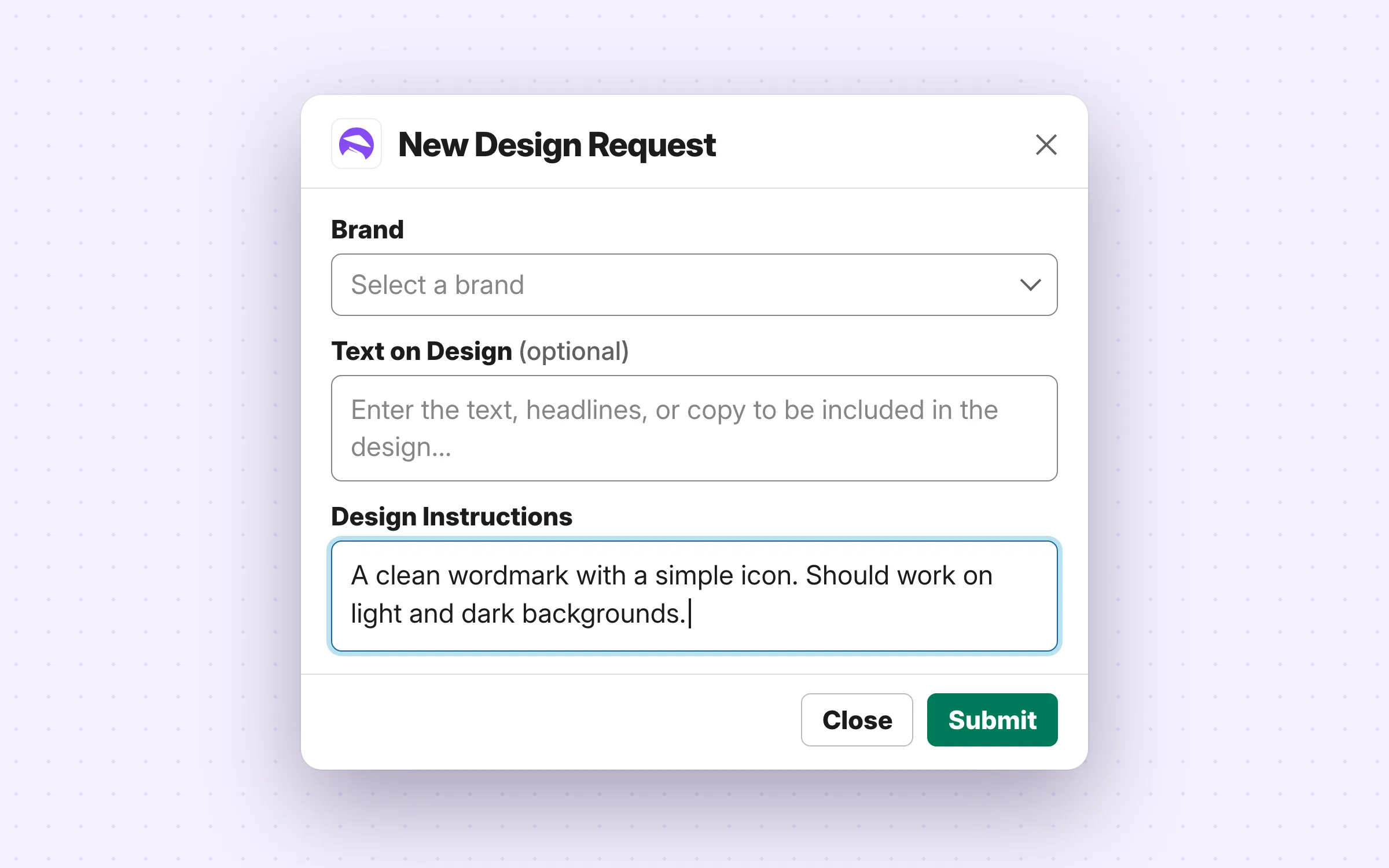
Create requests from a slash command
Type /create-request in any channel the app is in. Fill six fields (title, category, brand, instructions, text on design, references) and it lands straight in your Design Shifu queue.
Follow progress in the channel
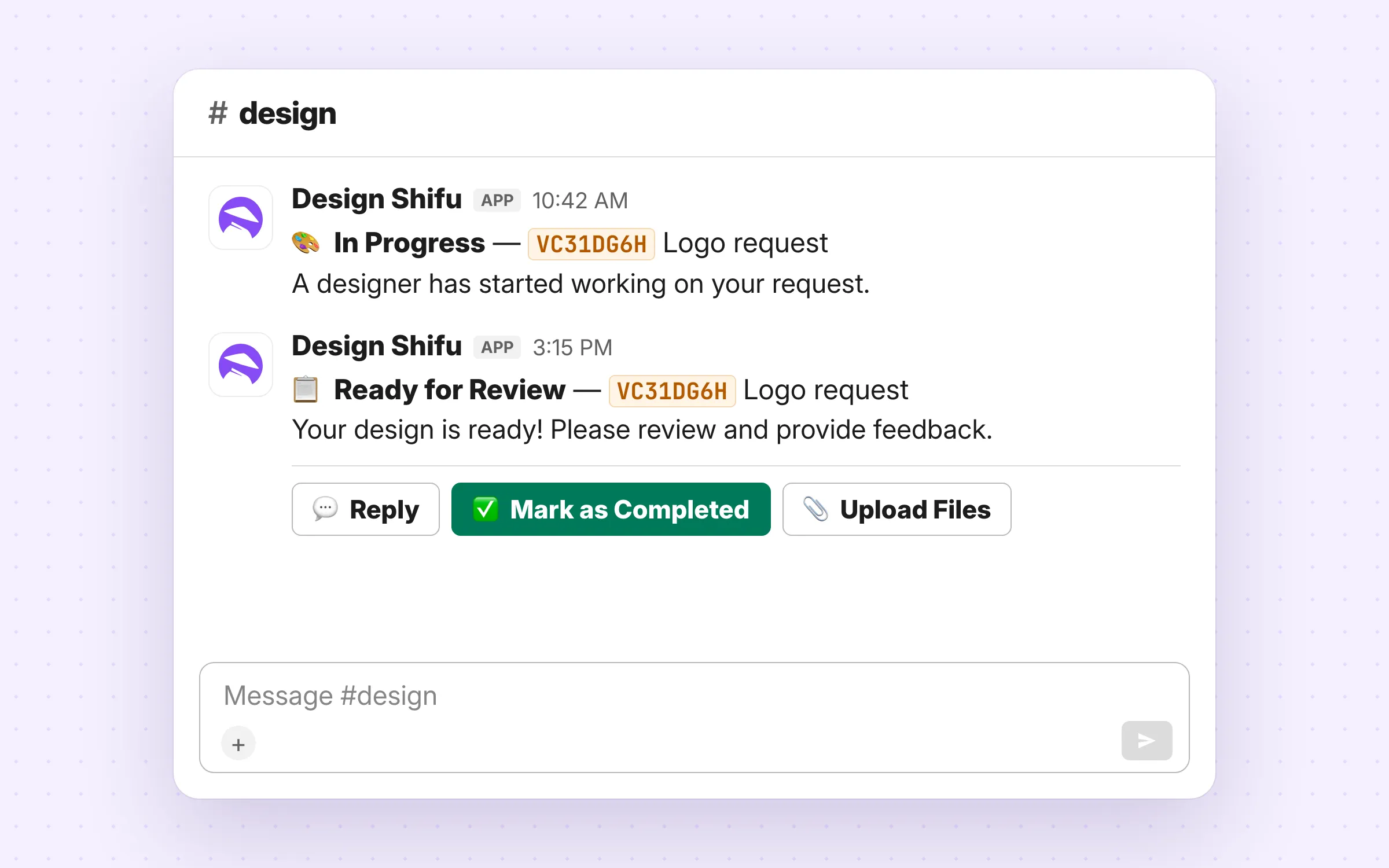
Design Shifu posts when a request moves to In Progress, Ready for Review or On Hold, so nobody has to chase a status update.
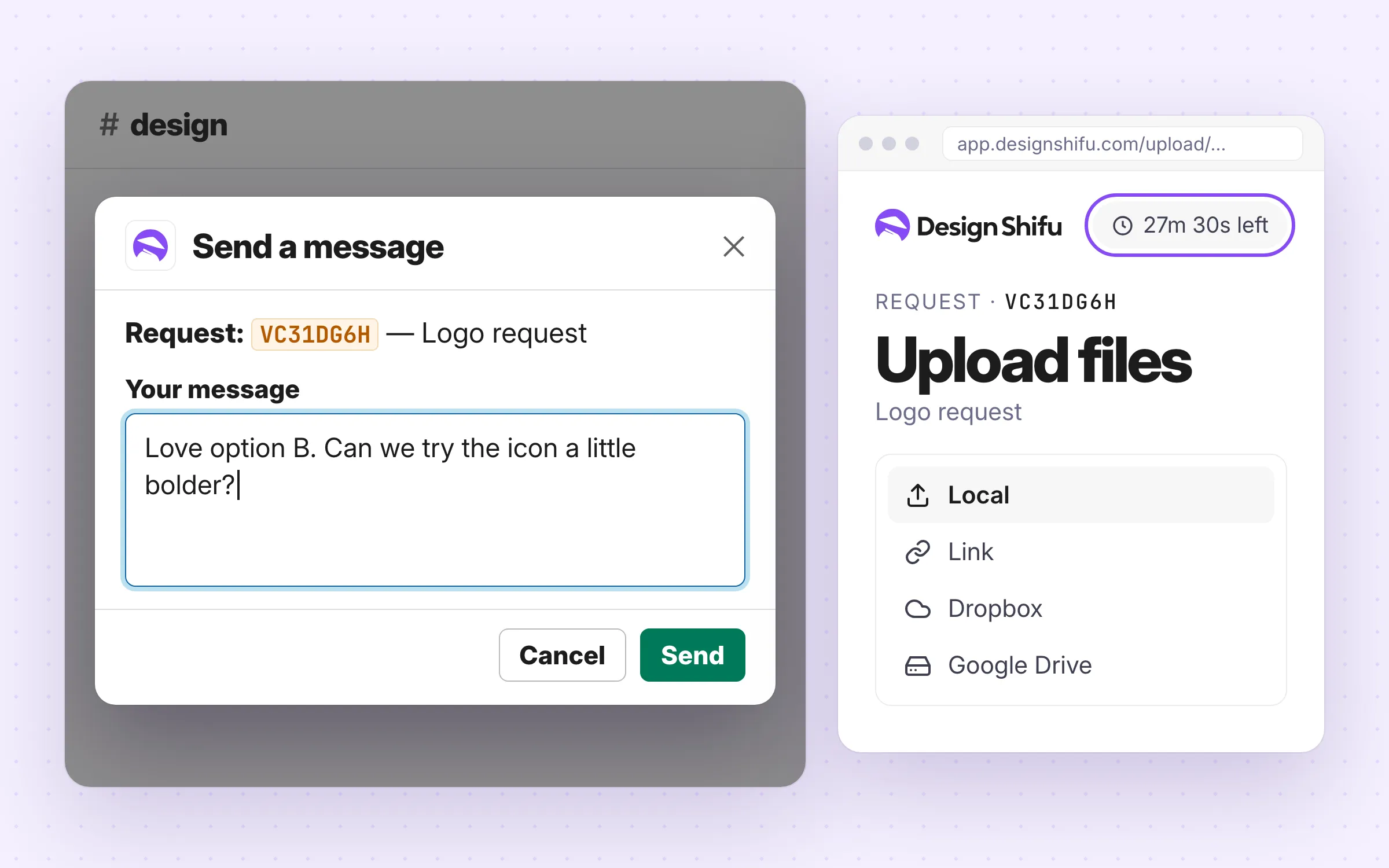
Reply and share files
Send feedback straight from the message. Attach files through a secure upload link, and whoever you share it with doesn't need a Design Shifu login.
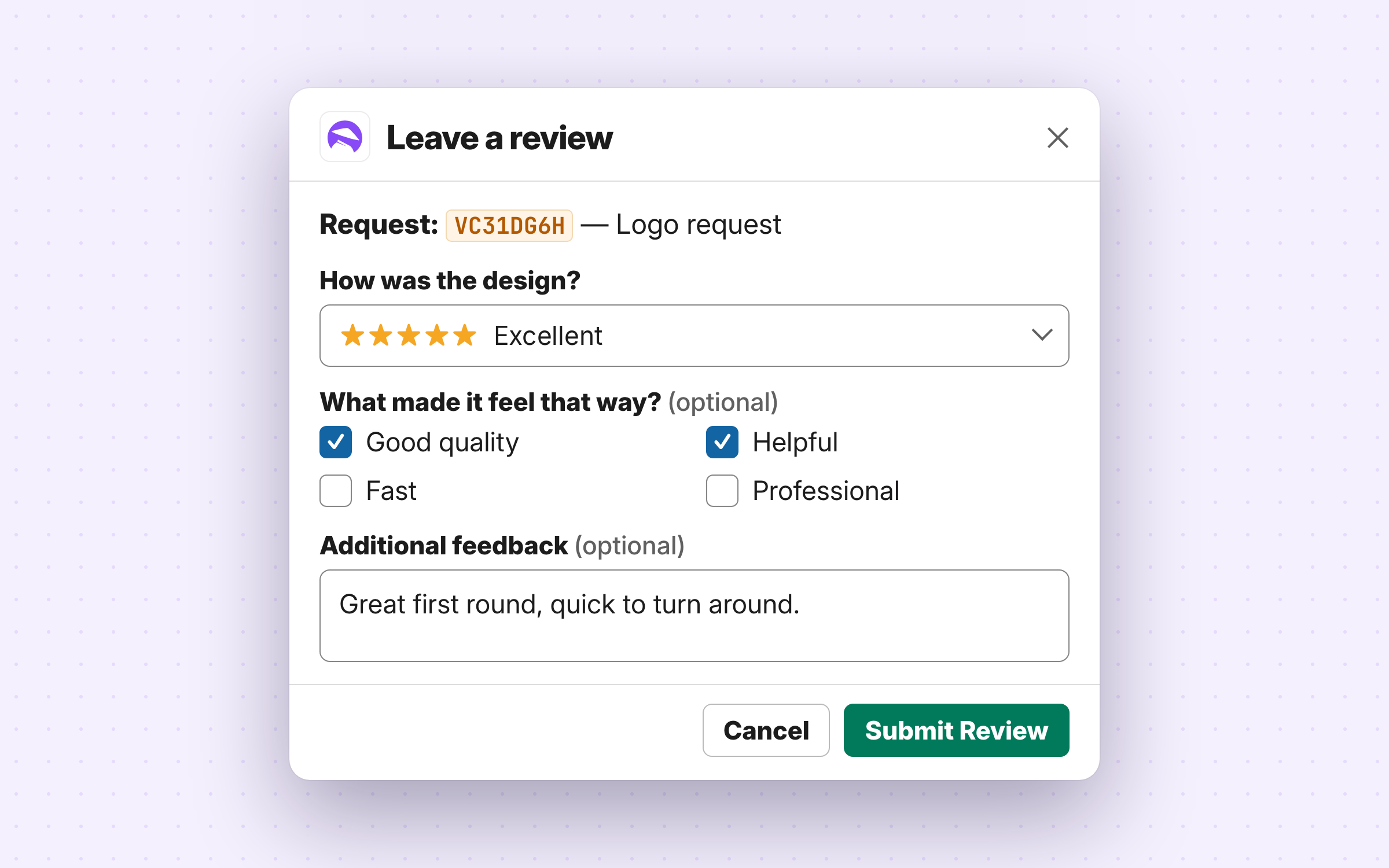
Rate the finished design
Close the loop with a five-star rating, a reason and an optional note, captured against the request without leaving Slack.
Adding it to your workspace
The Add to Slack button lives inside your Design Shifu account.
1
Sign in to Design Shifu
Go to app.designshifu.com and sign in with your team account.
2
Open Marketplace → Slack
Included on the Scale plan. On Growth, add it for $9 a month.
3
Connect and pick a channel
Slack asks you to authorise, then confirms the workspace and channel it will post to.
What it can see
Design Shifu posts only to the channel you choose, and reads names and email addresses so replies are attributed to the right person. It does not read your other channels. A team connects one Slack workspace at a time; to move to another, disconnect the current one first.
Start briefing from Slack
Already a customer? It takes about a minute to connect.